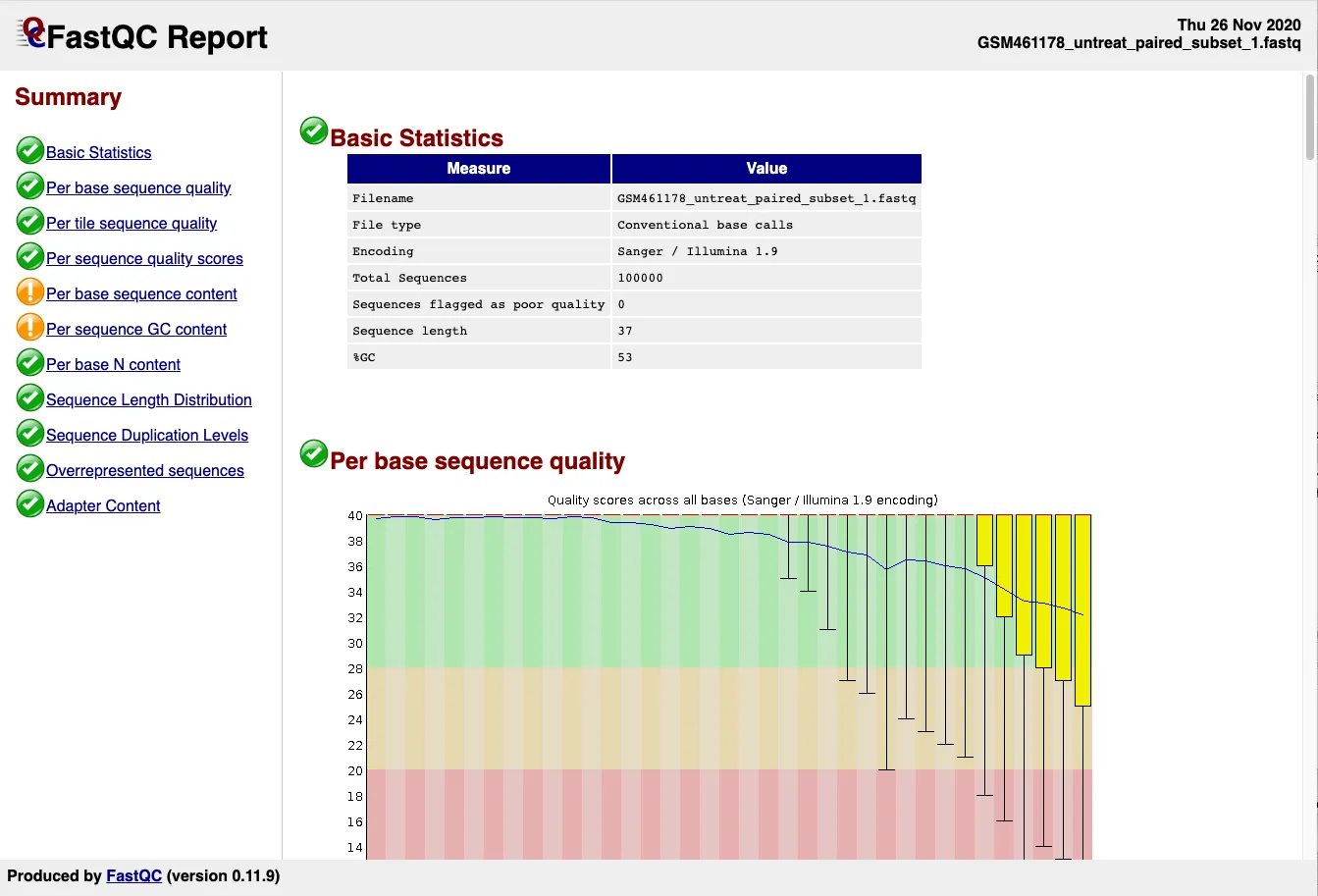
Process a small analysis (a FastQC) using SLURM
Process a small analysis (a FastQC) using SLURM
Section titled “Process a small analysis (a FastQC) using SLURM”Overview
Section titled “Overview”Disclaim: This tutorial has been designed to be run on the IFB Core Cluster or the ABiMS Cluster, part of the IFB NNCR Cluster. Although except the “Software environment” part, the rest can suit with any SLURM Cluster.
This tutorial aims to give the basic workflow when analyse data on a SLURM remote HPC cluster infrastructure
- Connection to the cluster login node
- Pushing the input data
- Loading the software environment for the analyse
- Launching the analyse job
- Getting back the results on your personal computer
Documentations
Section titled “Documentations”Note: at some point, you will have to complete your knowledge with other documentations
Practical informations
Section titled “Practical informations”Nomenclature
Section titled “Nomenclature”During this tutorial, you will have to launch some commands in a terminal.
This is a terminal:
$ # This is a comment that will be executed$ progam "This is a command. Don't type the $"This is the result of the commandThe $ is your terminal prompt
You will have to replace:
your_loginby your login (ex: cnorris)your_projectby your project name you requested
Connexion
Section titled “Connexion”We will establish a connection between your computer and the login node using the protocol SSH (Secure Shell) and the program ssh.
Prerequisites
Section titled “Prerequisites”- To access to a cluster infrastructure, you need a user account and a project account: check this page
- A ssh client:
- Linux: nothing to add :)
- MacOS: a terminal is already installed but it need to be completed with XQuartz to deal with graphical interfaces
- Windows: MobaXterm or (PuTTY + Xming) or Windows Subsystem for Linux (WSL) with Windows Terminal
In practice
Section titled “In practice”Windows
Section titled “Windows”Open a terminal or alternatives (ex: MobaXterm)
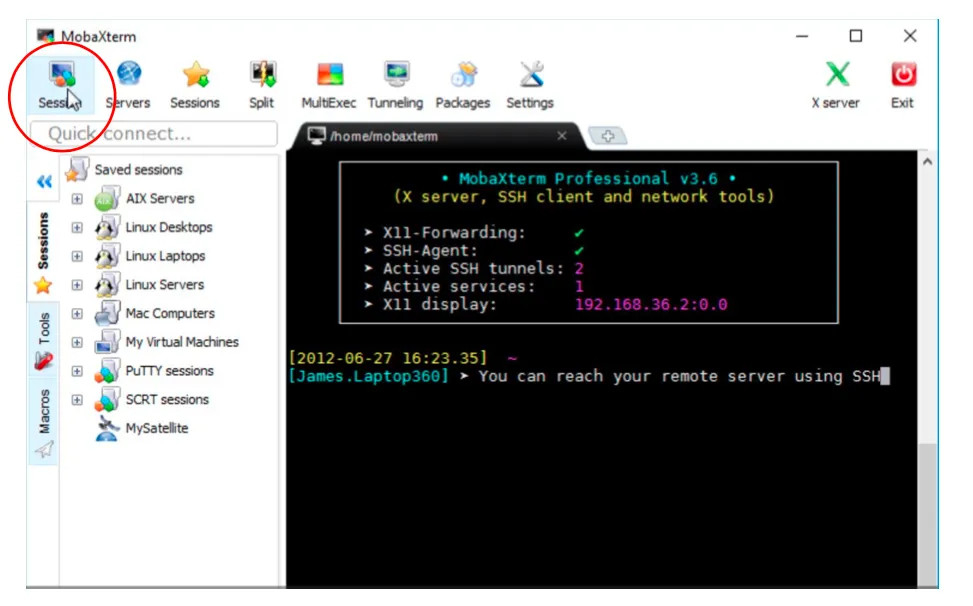
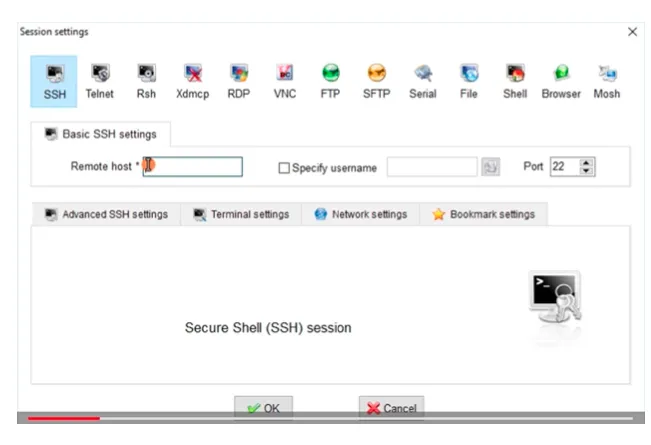
- Session:
ssh - Remote host:
core.cluster.france-bioinformatique.frorslurm0.sb-roscoff.fr - Username:
your_login - Port:
22
MacOSX or Linux
Section titled “MacOSX or Linux”Use the ssh program to establish a secure connection with the targeted login node with Terminal:
$ # For the IFB Core Cluster:$ ssh -Y your_login@core.cluster.france-bioinformatique.fr
$ # For the ABiMS Cluster:$ ssh -Y your_login@slurm0.sb-roscoff.fr
your_login@slurm0.sb-roscoff.fr\'s password:
Tips: You will then be prompted to enter your password (beware: at the password prompt, the characters you type are not printed on the screen, for obvious security reasons).
Navigation
Section titled “Navigation”0- Paths
Section titled “0- Paths”There are two ways to nagivate within a tree of directories:
- Absolute path: the path always begin by the root
/-
- Useful to reach files outside your project folder
-
- It’s safe for beginners
-
- Less flexible if you move your project folder somewhere else
-
- Longer to type
-
- Relative path: never begin with a
/but directly by the subfolder namefastq/run1or with..to step back../fastq/run1-
- Useful within your project folder
-
- Adaptative if you move part of your project files
-
- Stressful for beginners with all those
../../../
- Stressful for beginners with all those
-
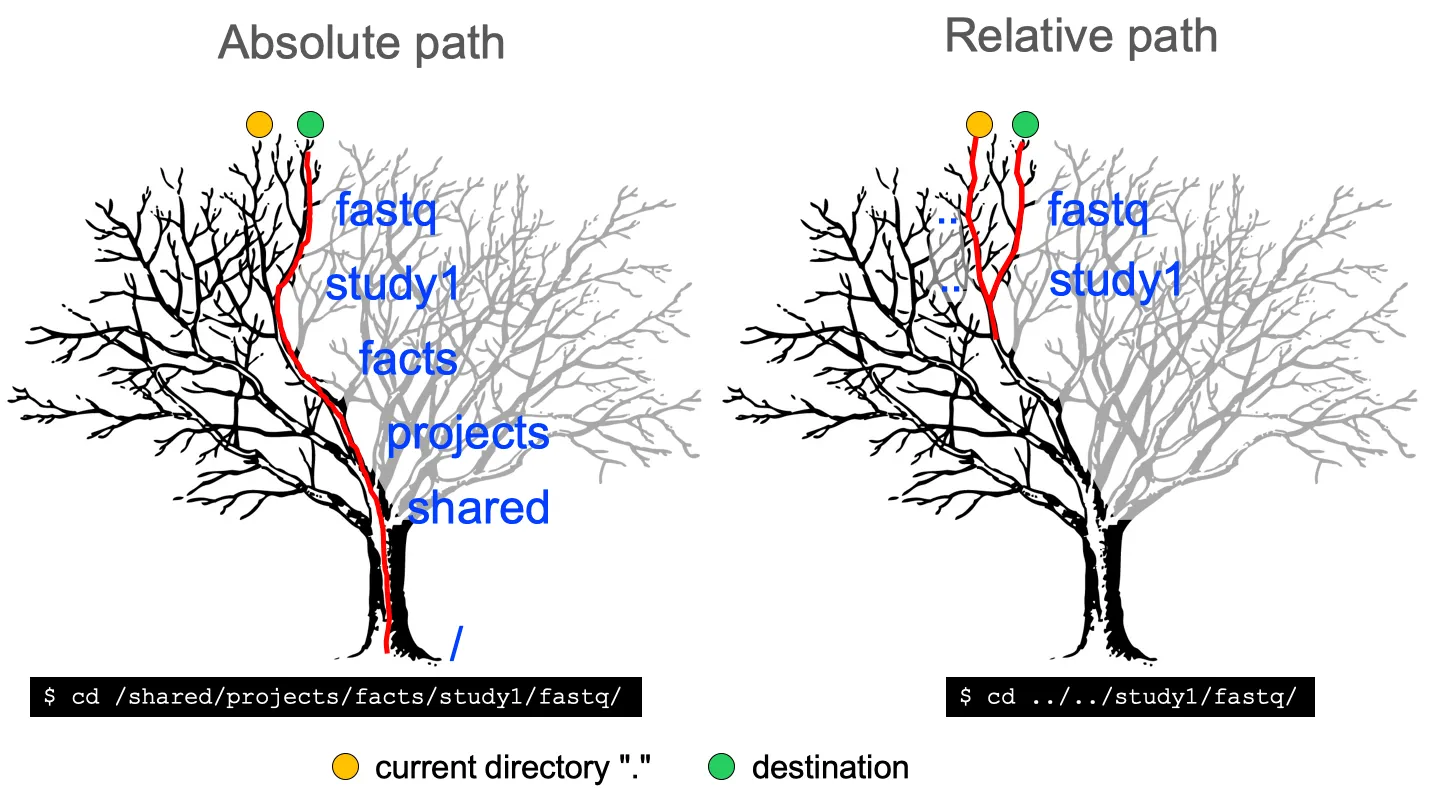
–> For this tutorial, we will mainly use absolute paths.
1- print the current working directory pwd and change the directory cd
Section titled “1- print the current working directory pwd and change the directory cd”$ # Display your current directory$ pwd/shared/home/your_login$ # Move to another directory$ cd /shared/bank$ # Display your new current directory$ pwd/shared/bank$ # Move to your project directory$ cd /shared/projects/your_project$ # Display your current directory$ pwd/shared/projects/your_project2- list the contain of a directory
Section titled “2- list the contain of a directory”$ cd /shared/bank$ # List the current directory$ lsaccession2taxid lachancea_kluyveri rosa_chinensisarabidopsis_thaliana mus_musculus saccharomyces_cerevisiaebos_taurus nicotiana_tabacum uniprotcanis_lupus_familiaris nr uniprot_swissprotdanio_rerio nt uniref50homo_sapiens refseq uniref90
$ # Or list directories somewhere on the filesystem$ ls /shared/bank/uniprot_swissprot/current/blast diamond fasta flat mapping mmseqs
$ ls /shared/bank/uniprot_swissprot/current/fasta/uniprot_swissprot.fsa3- make directories mkdir
Section titled “3- make directories mkdir”We will create this arborescence in your project directory :
.└── tuto_slurm ├── 01_fastq └── 02_qualitycontrol(Computer scientists suck at botany, for them the root is at the top :/)
$ cd /shared/projects/your_project$ pwd/shared/projects/your_project$ ls # So far there is nothing in your project directory$ mkdir tuto_slurm$ ls # We can check that the directory has been createdtuto_slurm$ cd tuto_slurm # Oh! a relative path$ pwd/shared/projects/your_project/tuto_slurm$ mkdir 01_fastq 02_qualitycontrol$ ls01_fastq           02_qualitycontrol$ cd /shared/projects/your_project$ tree  # tree will help you to display a nice tree.└── tuto_slurm    ├── 01_fastq    └── 02_qualitycontrol
3 directories, 0 files# you can also use: tree -d# to display only directory structure
Get data on the cluster
Section titled “Get data on the cluster”You can either fetch data:
- from a website with the command
wget - from your computer using an SFTP Client (ex: FileZilla, Cyberduck, WinSCP)
In this part, we will choose the first solution and fetch from the Zenodo website, a public repository with wget.
The usage of a SFTP Client is explained in the section “Transfer: get back your results on your personal computer”. It’s just the reverse !
In practice
Section titled “In practice”For this tutorial, we will borrow a FASTQ file provided by the excellent Galaxy Training Network:  .
$ cd /shared/projects/your_project/tuto_slurm/01_fastq$ wget https://zenodo.org/record/61771/files/GSM461178_untreat_paired_subset_1.fastq$ lsGSM461178_untreat_paired_subset_1.fastq$ ls -lh # Two option of ls that will among other things give use the weight of our file: 20MB. "l" for long format and "h" for human readabletotal 20M-rw-r--r-- 1 your_login root 20M Nov 6 07:33 GSM461178_untreat_paired_subset_1.fastqSoftware environment
Section titled “Software environment”Why do we need to “load” tools?
Section titled “Why do we need to “load” tools?”- Each tools need its environment (binaries, libraries, documentation, special variables)
- Each tools has its own dependencies. It is not possible for all tools to coexist in the same environment.
- Reproducibility is important : some users may need different versions of the same tool
At the IFB, the cluster administrators install all tools required by the users. To access to a tool, you need to load it into your environment using a special application called module.
In practice
Section titled “In practice”Let’s load the software environment for FastQC, a quality control tool.
$ # List all the softwares and versions available$ module availabyss/2.2.1               emboss/6.6.0            mirdeep2/2.0.1.2  rseqc/2.6.4adxv/1.9.14               enabrowsertools/1.5.4   mixcr/2.1.10      rstudio-server/1.2.5042alientrimmer/0.4.1        ensembl-vep/98.2        mmseqs2/8-fac81   salmon/0.11.3anvio/6.1                 epa-ng/0.3.6            mmseqs2/8.fac81   salmon/0.14.1anvio/6.2                 epic2/0.0.41            mmseqs2/10-6d92c  salmon/0.14.2$ # List the different versions of one software$ module avail fastqcfastqc/0.11.5  fastqc/0.11.7  fastqc/0.11.8  fastqc/0.11.9
$ # We can check that the fastqc application isn't available by default$ fastqc --version-bash: fastqc: command not found$ # Load the module for fastqc version 0.11.9$ module load fastqc/0.11.9$ # Check the availability and the version$ fastqc --versionFastQC v0.11.9$ # List loaded modules$ module listCurrently Loaded Modulefiles: 1) fastqc/0.11.9
Note that the module load command is only enabled for your current terminal session. You have to load it on each session and at the beginning of your sbatch scripts (cf. below).
[For curious] Under the hood
Section titled “[For curious] Under the hood”At the IFB, our scientific softwares are composed:
- at 90% of Conda packages provided by the project BioConda
- at 10% of Apptainer (ex: Singularity) containers for tenacious softwares (Licence restrictions, problematic installation, …)
To provide the same interface for both Conda and Apptainer technologies, the IFB NNCR Cluster provides an abstraction layer with Environment Modules
SLURM - Overview
Section titled “SLURM - Overview”How does a computer work?
Section titled “How does a computer work?”Computer components:
- one or more chips: A chip (or microprocessor) is responsible for executing elementary instructions requested by the software
- RAM (Random access memory): RAM is used by the chip to process data (a personal computer has between 4 to 8 GB of RAM)
- storage space: The storage space is used to keep huge amount of data more permanently (a personal computer has on average 1TB of storage space)
Type of “Architecture”:
- A Personal Computer (PC): has enough resources to allow you to perform many tasks such as browsing the Internet, working with a spreadsheet or word processing software. Some personal computers even have enough resources to process videos or play 3D video games.
- A HPC Cluster: designed to run massive data analysis programs. Some programs require a huge number of processing units (10 to 100 CPUs), huge amounts of RAM (100 GB up to 1TB for some programs) and large data storage capacities (several TB for a single research project).
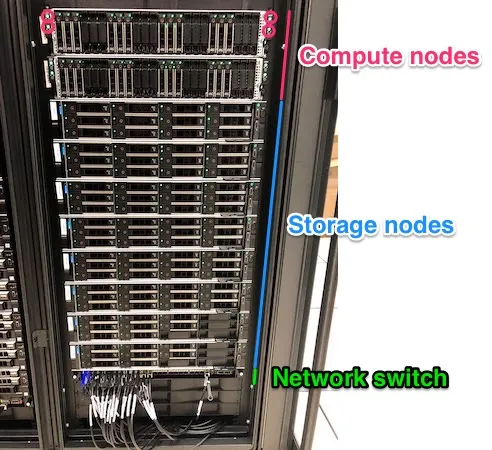
SLURM components
Section titled “SLURM components”A HPC/SLURM infrastructure is composed of:
- A login node: the server on which you are logged - Never launch any job on it!
- A master node: the conductor which give order and control the resources
- Some computer nodes: these are the ones that work
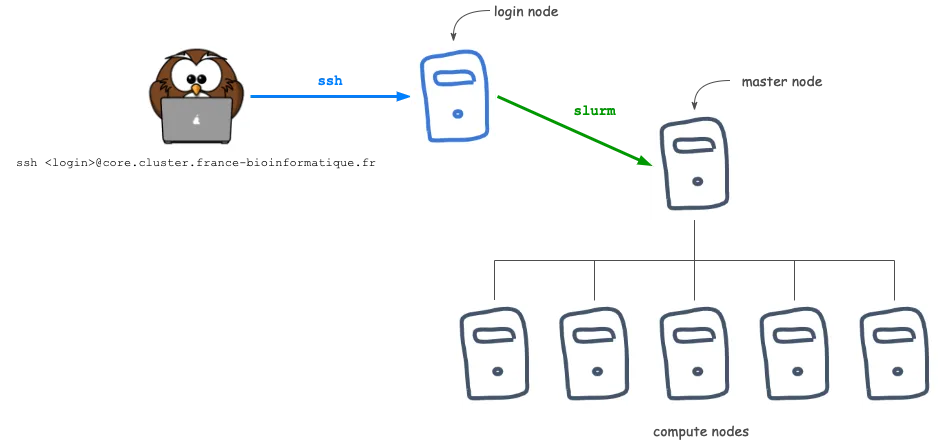
The sequence:
- You are logged in on a login node
- You submit a job using either
srunorsbatch - The master receives your job request and puts it in a queue list - You wait patiently
- The master: when the resources you requested are available on one of the nodes, the job is sent on it
- The computer node processes your job - Again, you wait patiently
- You enjoy your results when the job has ended
The resources tracked by SLURM
Section titled “The resources tracked by SLURM”The resources you need for your job can be set using options:
- CPU/Core: can be set with
--cpus-per-taskbut implicitly by default--cpus-per-task 1 - memory: can be set with
--membut implicitly by default--mem 2GB - partition: can be set with
--partitionbut implicitly by default--partition fast
There are 2 main partitions:
fast: for job that can run within 24 hourslong: for job that can run within 30 days
srun vs sbatch
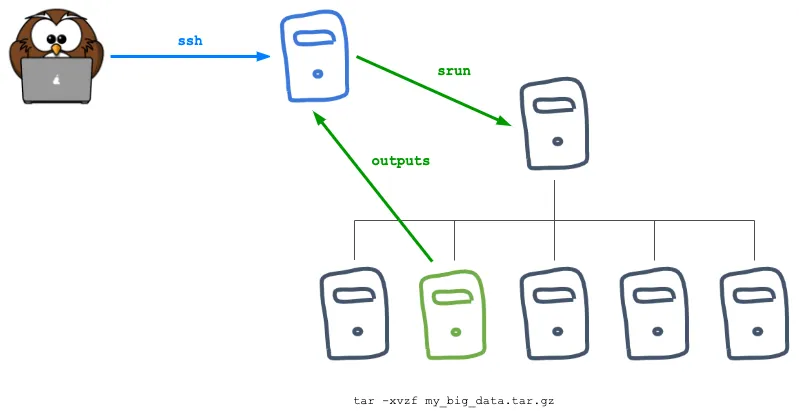
Section titled “srun vs sbatch”“Interactive” mode: srun
Section titled ““Interactive” mode: srun”- Short/Quick job and/or development
- Prerequisite: none
⚠️ The job is killed if the terminal is closed or the network is cut off.
Batch mode: sbatch
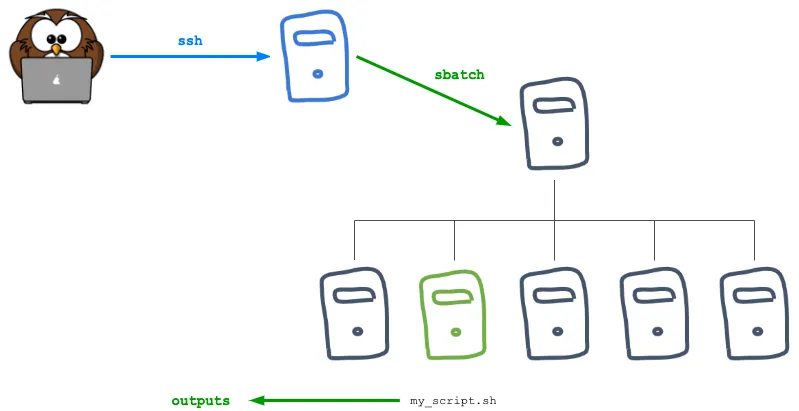
Section titled “Batch mode: sbatch”- Heavy jobs
- Prerequisite: text editor
- One script per job
Better for reproducibility because it’s self documented.
SLURM srun - Run simple jobs
Section titled “SLURM srun - Run simple jobs”Overview
Section titled “Overview”srun suits with small jobs in duration because indeed, the job is killed if the terminal is closed or the network is cut off. The classic examples are files [de]compression (ex: tar, gzip …), files parsing (ex: sort, grep, awk, sed …), etc.
In practice
Section titled “In practice”$ cd /shared/projects/your_project/tuto_slurm/02_qualitycontrol/$ # Creation of a dedicated folder for srun$ mkdir srun$ cd srun
$ # Load the module for fastqc if it wasn't done yet$ module load fastqc/0.11.9$ srun fastqc /shared/projects/your_project/tuto_slurm/01_fastq/GSM461178_untreat_paired_subset_1.fastq -o .Started analysis of GSM461178_untreat_paired_subset_1.fastqApprox 5% complete for GSM461178_untreat_paired_subset_1.fastqApprox 10% complete for GSM461178_untreat_paired_subset_1.fastq[...]Approx 95% complete for GSM461178_untreat_paired_subset_1.fastqApprox 100% complete for GSM461178_untreat_paired_subset_1.fastqAnalysis complete for GSM461178_untreat_paired_subset_1.fastq
$ # We can check the files produced$ lsGSM461178_untreat_paired_subset_1_fastqc.html GSM461178_untreat_paired_subset_1_fastqc.zip⚠️ Note that if you omit the srun command, the job will run on the login node. It’s bad!
Explainations
Section titled “Explainations”srun fastqc /shared/projects/your_project/tuto_slurm/01_fastq/GSM461178_untreat_paired_subset_1.fastq -o .srun: we ask SLURM to distribute our job on one of the computer nodesfastqc: the software we want to use/shared/projects/your_project/tuto_slurm/01_fastq/GSM461178_untreat_paired_subset_1.fastq: our input file-o: the FastQC option to indicate the output directory. Otherwise, FastQC will create the output files within the fastq directory.:.is a relative path in Linux that designates the current directory (where you are when you launch the job)-o .: we ask FastQC to create its output files in the current directory
With an absolute path the command will be write as follow:
srun fastqc /shared/projects/your_project/tuto_slurm/01_fastq/GSM461178_untreat_paired_subset_1.fastq -o /shared/projects/your_project/tuto_slurm/02_qualitycontrol/srun/Note that implicitly, 2GB of RAM and 1 CPU is reserved , you can modify theses parameters and use additional memory:
srun --cpus-per-task 1 --mem 2GB fastqc /shared/projects/your_project/tuto_slurm/01_fastq/GSM461178_untreat_paired_subset_1.fastq -o .SLURM sbatch - Run heavier jobs
Section titled “SLURM sbatch - Run heavier jobs”Overview
Section titled “Overview”sbatch will launch the jobs in background. Additionally to your results, SLURM will create 2 files containing the standard output and the standard error flows. The advantage of using sbatch is that you can close your terminal during the job execution.
The conterpart is that you need write a script file that will contain your command lines and the sbatch parameters.
1- A script file
Section titled “1- A script file”There are different ways to create a script file on a remote server:
vi,nano,emacs: those tools are fully intergrated within the terminal, non-graphical and so not easy to handle for beginnersgedit: it’s a graphical text editor (requiredssh -Y). Can be rather slow depending of the network connection.- Transfert SFTP: a possibility is to edit the text file on your computer, then to transfert it to cluster using a SFTP Client (ex: FileZilla, Cyberduck, WinSCP)
We will use the gedit solution for this part of the tutorial.
But the usage of a SFTP Client is explained in the part “Transfer: get back your results on your personal computer”.
In practice
Section titled “In practice”1. Open an other terminal because gedit display a lot of annoying warnings. Don’t forget the -Y option for graphical forwarding.
ssh -Y your_login@slurm0.sb-roscoff.fr2. Open gedit
mkdir /shared/projects/your_project/tuto_slurm/scripts/gedit /shared/projects/your_project/tuto_slurm/scripts/fastqc.sbatch &gedit should open a file named fastqc.sbatchin a detached window.
The & in bash will put gedit in background and so release the terminal to type other commands.
3. Write you script within gedit
#!/bin/bashmodule load fastqc/0.11.9srun fastqc /shared/projects/your_project/tuto_slurm/01_fastq/GSM461178_untreat_paired_subset_1.fastq -o .Note that implicitly, 2GB of RAM and 1 CPU is reserved: you can modify theses parameters and use additional memory
#!/bin/bash#SBATCH --cpus-per-task 1#SBATCH --mem 4GBmodule load fastqc/0.11.9srun fastqc /shared/projects/your_project/tuto_slurm/01_fastq/GSM461178_untreat_paired_subset_1.fastq -o .Explainations
Section titled “Explainations”#!/bin/bashis the Shebang. It’s indicate to SLURM the language used in the scripts, in our case, thebashlanguage.#SBATCHwill allow to give parameters to sbatch like: cpus, memory, email, …
Save your fastqc.sbatch file by clicking the SAVE button in gedit.
2- Launch
Section titled “2- Launch”Now back to our first terminal, we will launch the job using sbatch
$ cd /shared/projects/your_project/tuto_slurm/02_qualitycontrol/$ mkdir sbatch$ cd sbatch
$ sbatch /shared/projects/your_project/tuto_slurm/scripts/fastqc.sbatch  Submitted batch job 203739
3- Monitoring during the run
Section titled “3- Monitoring during the run”Pending Status: PD
Section titled “Pending Status: PD”Maybe your job will have to wait for available resources.
$ squeue -u your_login JOBID PARTITION NAME USER ST TIME NODES NODELIST(REASON) 203739 fast fastqc.+ your_login PD 0:00 1 (Resources)Running Status: R
Section titled “Running Status: R”At some point, the job will run on one of the computer nodes.
$ squeue -u your_login JOBID PARTITION NAME USER ST TIME NODES NODELIST(REASON) 203739 fast fastqc.+ your_login PD 5:00 1 cpu-node-234- Monitoring at the end of the job
Section titled “4- Monitoring at the end of the job”Possibility, some jobs will FAILED, one of the reasons is that the job consume more memory than reserved.
It can be checked by comparing the memory requested ReqCPUS and used MaxVMSize.
Check the memory usage
Section titled “Check the memory usage”sacct --format=JobID,JobName,User,Submit,ReqCPUS,ReqMem,Start,NodeList,State,CPUTime,MaxVMSize%15 -j 203739 JobID JobName User Submit ReqCPUS ReqMem Start NodeList State CPUTime MaxVMSize------------ ---------- ----------- ------------------- ------- ------ ------------------- -------- ------ ----------- -----------203739 fastqc.sb+ your_login 2020-09-02T22:06:31 1 2Gn 2020-11-03T23:32:38 n97 FAILED 26-12:25:00203739.batch batch 2020-09-03T23:32:38 2 2Gn 2020-11-03T23:32:38 n97 FAILED 26-12:25:00 2279915KIn this case, the job consume at some point 2.2GB (MaxVMSize=2279915K). You should increase the reservation with --mem 4GB!?
5- Cancel a submitted job
Section titled “5- Cancel a submitted job”Simply use the scancel command with jobID(s) to kill
scancel 218672Transfer: get back your results on your personal computer
Section titled “Transfer: get back your results on your personal computer”To get back and forth files between a remote server and your local Personal Computer, we need a FTP/SFTP Clients:
For this tutorial, we will use FileZilla because it’s the only one being cross-platform. It’s also the more complex so the other ones will be easy to handle.
1- Connection
Section titled “1- Connection”- Host:
- For the IFB Core Cluster:
core.cluster.france-bioinformatique.fr - For the ABiMS Cluster:
slurm0.sb-roscoff.fr
- For the IFB Core Cluster:
- Port:
22to use the SFTP protocol
2- The interface
Section titled “2- The interface”The interface is rather completed with logs, a lot of panels … But don’t be afraid:
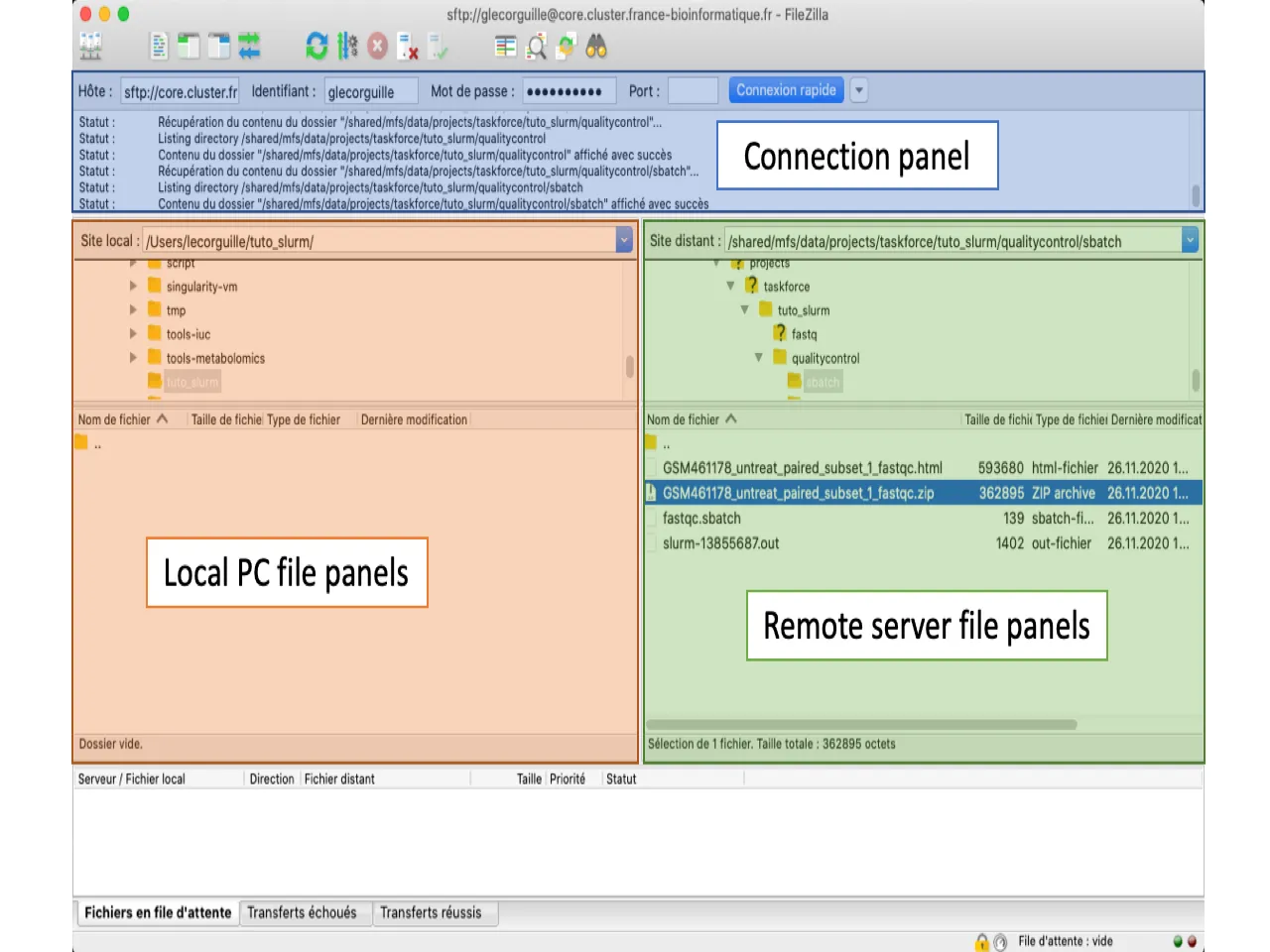
3- Browse the 2 arborescences
Section titled “3- Browse the 2 arborescences”- Local panel: find a place where you will download the FastQC archive
- Remote panel:
- Copy/Paste the result of
pwdin the input “Site distant/Remote site” (ex:/shared/projects/your_project/tuto_slurm/02_qualitycontrol/sbatch) - Browse the tree of files
/shared->projects->your_project-> […] ->sbatch
- Copy/Paste the result of
4- Transfer
Section titled “4- Transfer”You just need to Drag and Drop the file between the “Local panel” and the “Remote panel”.
It’s the same mechanism to get and to push data depending if you drag a file from or to the “Remote panel”
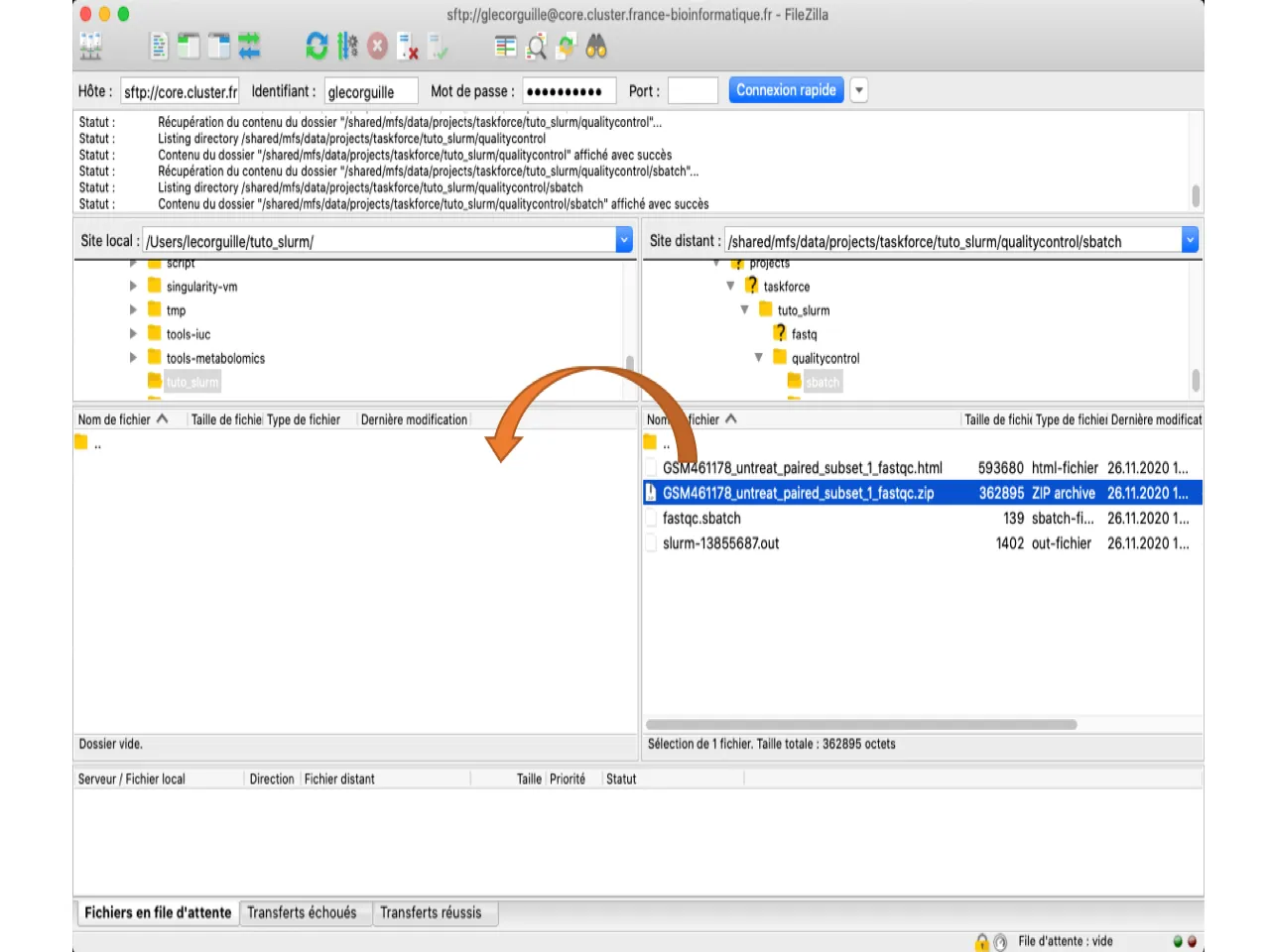
Enjoy your results
Section titled “Enjoy your results”Congrats, you have launched your first job on a HPC Cluster and get the results on your own computer!